
Live Well & Fully Email Whitelist Instructions
Since your Email Provider probably uses some type of overzealous filtering; We ask that you add us to your trusted list of senders, contacts or address book. All also known as "Whitelisting."
If you do not see an email from Barbara Decker in your Inbox, my email may have mistakenly been sent to your spam folder.
Please open your spam folder and if you find an email from Barbara Decker open it and mark it as "Not spam"...
NEXT: Click your provider below to Whitelist anything from livewellandfully.com
Security Apps
Is your email client or spam filter not listed?
Try adding [email protected] to your Address Book or Contact list.
If messages continue to be sent to your junk folder contact your ISP or spam filter application support and ask how to whitelist the domain livewellandfully.com
Popular Apps

Gmail
At times, Gmail mistakenly sends emails you want, to the Spam folder...
If you do not readily find an email from Barbara Decker
Please check your Gmail Spam Folder:
To assure you continue to get emails you asked to receive, Create a Filter
If you find an email from Barbara Decker in Gmail spam?
Open the email please.
Click 'Dots' button on the top right, to reveal your choices.
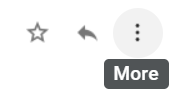
Click Filter messages like this
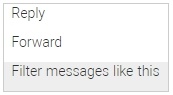
Click the button Create filter to open your settings.
From the next menu, please check these options
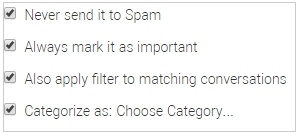
Check the box Never send it to Spam.
Under the "Categorize as: Choose Category..."
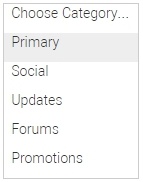
Click the dropdown icon next to "Choose Category..."
Please select Primary in the next options menu.
Click the blue Create filter button, to save your settings
Now you will always see Barbara Decker in your Primary Inbox tab!
Next, if the email remains open? Please mark the email as "Not spam"
- If you see an email from Barbara Decker: Open the email please.
- Click the button on the alert, labeled Report not spam

Gmail Tabs
- If you are using Gmail Tabs such as 'Promotions' please open your Promotions tab in Gmail.
- If you find an email from Barbara Decker in your Gmail Promotions tab:
- Grab and drag my email to the Primary Inbox Tab.
- Gmail will then ask if you want to do this for all future messages from that sender.
- Click Yes in the confirmation box that appears in the bottom corner of Gmail.
- This way you will always see Barbara Decker in your Primary Inbox tab...
Also you can create a filter...
- If you find an email from Barbara Decker in your Gmail Promotions tab:
- Open the email please.
- Click the dots menu on the top right of the email.
Click Filter messages like this
Click the button Create filter to open your settings.
Please select Primary in the next options menu.
Click the blue Create filter button, to save your settings
Now you will always see Barbara Decker in your Primary Inbox tab...
Gmail Mobile App
If you are using the Gmail Mobile App on your mobile device, please open the app now
Should you not readily see an email from Barbara Decker, please check the Spam Folder:
Should an email from Barbara Decker appear mistakenly sent to Gmail spam?
Please open the email and tap the three-dots menu icon on the top right.

Tap Report not spam.
The email moves to your Inbox, and future emails from this sender will not go to Spam.
Are you are using Gmail Tabs such as "Promotions" please open your Promotions tab in Gmail.
When you find the email from Barbara Decker
Tap the menu icon - top right.
Then select Move to.
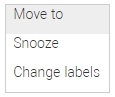
Then select Primary from the list.
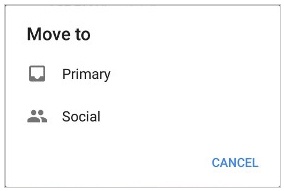
This should help Gmail to know, you always want to see Barbara Decker in your Primary Inbox tab...

Yahoo! Mail
If you do not see an email from Barbara Decker in your Inbox...
Check your Spam Folder. If an email from Barbara Decker is there?
- Please open the email.
- Next click the Not Spam button on the top toolbar.
To ensure delivery: Add us to your Yahoo Contacts. (Yahoo runs its spam filter before any filters you create, so a filter alone won’t keep our email out of Spam — being in your Contacts and clicking Not Spam are what Yahoo uses.)
- Open an email from Barbara Decker and click or tap the sender name at the top of the message.
- Click Add to contacts (on the Yahoo Mail app, tap the name and choose Add to Contacts).
- Confirm the email address shows as [email protected], then Save.
- Or, from the left panel click the Contacts icon, then Add a new contact, enter Barbara Decker and [email protected], and click Save.

iPhone Mail App
iPhone Mail identifies most junk mail (spam) sent to your @icloud.com address or aliases, but it can mistakenly move email incorrectly to your Junk mail folder.
Periodically check the Junk folder for email messages that were marked as junk mistakenly.
To indicate that an email message from Barbara Decker isn’t junk:
- Open your Mail app and go to the Mailboxes screen
- Scroll down to the folders area
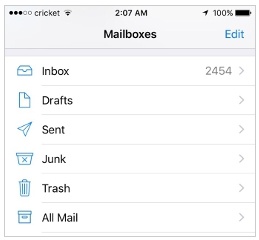
- Select the Junk folder.
- Open the email from Barbara Decker.
- Tap the folder icon at the bottom of the screen.
- Tap Inbox to move the email there.
The message is moved to your Inbox. Subsequent email messages from Barbara Decker will no longer be marked as junk.
By default, messages in the Junk folder are deleted after 30 days so be sure to check it often to whitelist relevant email.

Outlook Mobile App
Outlook's mobile app now offers a "Focused Inbox" for your important email
- To add Barbara Decker to your list of Focused Inbox on the Outlook App...
Please open the Outlook app on your iPhone or Android:
Then open the email from Barbara Decker:
- Tap the three-dots menu at the top of the message.

- On the menu displayed tap Move to Focused Inbox
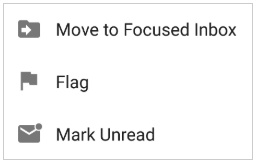
- Tap Always Move when asked about future messages.
Now all future messages from Barbara Decker will appear in your Focused Inbox
You can also remove unwanted emails from your Focused Inbox as well by repeating this process in your Focused tab.
Outlook (Windows & Mac)
To ensure you continue to receive important emails in Outlook:
Please add Barbara Decker to your list of "Safe senders" on Outlook:
In the current Outlook (new Outlook for Windows, Mac and Microsoft 365):
- Click the Settings gear icon on the top right.
- Go to Mail > Junk email.
- Under Safe senders and domains click Add.
- Enter [email protected] and press Enter, then click Save.
In classic Outlook:
- Right click our email in your Inbox email list pane.
- On the menu displayed move your mouse over or tap Junk
- Click or tap on Never block sender then click OK
To add sender to address book:
- Open the email
- Right click on the from address
- Choose Add to contacts option
Email Clients
Outlook.com
Previously "Hotmail", "Live", "Windows Live" and "MSN"...
If an email from Barbara Decker lands in your Junk Email folder:
- Select the email, then click Report > Not junk in the top toolbar.
Manually Add to Safe senders:
- Click the gear Settings icon on the top right.
- Go to Mail > Junk email.
- Under Safe senders and domains click Add.
- Enter the email address [email protected] and press Enter.
- Click Save.
- Emails on your Safe senders list will not be delivered by mistake to your Junk folder.

AOL Webmail
To ensure important emails get delivered to your AOL Inbox- Please complete these two steps...
If you find Barbara Decker in your Spam folder:
- Open the Spam folder and select the email.
- Click Not Spam at the top of the page.
Add [email protected] to your Contacts:
- Open the email from Barbara Decker
- Click the More options icon (three dots) at the top of the email.
- Click Add Sender to Contacts.
- Add Barbara Decker to the name fields and click Save.

Comcast
Please log into Xfinity Email (connect.xfinity.com):
Should you find an email from Barbara Decker in your Spam folder:
- Open the Spam folder, check the box next to the email, and click Not Spam.
Next, create a rule so our emails always reach your Inbox:
- Click the gear icon, then Email Settings.
- Click Filter Rules > Add new rule.
- Name the rule, set the condition From contains [email protected], choose the action Move to folder: Inbox, and save.

EarthLink
If you are not receiving email at EarthLink, there are two actions you can take.
- Check the Known Spam folder (under spamBlocker in the left pane of Web Mail).
- Add Barbara Decker to your address book.
Known Spam Folder:
- In the Known Spam folder, if you see Barbara Decker...
- Check the box next to the email and click This is NOT Spam.
- The email will be moved to your Inbox.
Address Book Inclusion:
- Open your Address Book and click New Contact.
- Fill in [email protected] as the email address of the sender.
- Click Save.

AT&T
AT&T no longer maintains their own inbox.
AT&T email is now "Currently, from AT&T" — powered by Yahoo. Sign in at currently.com
Please follow the Yahoo instructions for whitelisting an ATT.net email address.
Click or Tap here, to scroll to the Yahoo instructions...

Mozilla Thunderbird
Please open your Thunderbird email client:
If an email from Barbara Decker appears in your Junk Folder:
Please mark that message as Not Junk.
Next, please add Barbara Decker to your Address Book:
- Click the Address Book icon in the toolbar on the left edge of the window.
- Make sure the Personal Address Book is highlighted.
- Click the New Contact button.
- Copy and paste the "From" address, [email protected] into the Email field.
- Click Save.
Security Software

Trend Micro
If you received an email message from Barbara Decker that was incorrectly moved to the Spam Mail folder by the Anti-Spam Toolbar you can prevent this from occurring in the future
The Anti-Spam Toolbar detects spam by looking for certain keywords in the email's subject or body. Occasionally, it may detect what you consider legitimate email as spam.
To prevent this from occurring you can do either of the following:
- Add the Barbara Decker to the list of Approved Senders.
- Decrease the Spam Email Filter Strength.
Note: You can also select the email and click Not Spam to report it to Trend Micro. However, this feature serves only as a reference to their spam database, and it may not have an effect on how the toolbar detects spam.
Note: The Trend Micro toolbar works with the classic Outlook desktop program only (not the new Outlook app). Its settings are managed in the Trend Micro program under Internet & E-mail Controls.
Add the sender to the list of Approved Senders:
- Open Microsoft Outlook.
- Click the Spam Mail folder then select the legitimate email detected as spam.
- Click Approve Sender on the toolbar.
- Click Yes when the confirmation message appears.
Decrease the Spam Email Filter Strength:
- Open Microsoft Outlook.
- Click Trend Micro Anti-Spam then click Settings.
- On the Spam Filter tab, move the slider bar to select a lower filter strength.
- Click OK to save your settings.
Spam Filters

SaneBox
Sanebox is not a filter, but a filtering system trained by you.
- Open your Webmail or Gmail where you use SaneBox.
- Open your @SaneLater folder.
- If you find an email from Barbara Decker or an email from [email protected] in @SaneLater...
- Please drag my email to your Inbox folder.
- By doing this you will always get our great content in your Inbox from now on!

Spam Assassin
Spam Assassin runs on some hosting companies' email servers and is usually administered by your server admin.
- If your hosting control panel offers Spam Filters / SpamAssassin, add [email protected] to its whitelist (newer versions call this the welcomelist).
- Or ask your hosting support to whitelist [email protected] for you.

Barracuda Networks
Some workplaces filter email through Barracuda. If Barracuda quarantines a legitimate message, there are two ways to allow the sender.
From the Quarantine Digest email:
- Barracuda sends you a summary email listing quarantined messages.
- Find the email from Barbara Decker and click Allow List next to it. The message is delivered and the sender is allowed in the future.
From your Barracuda account:
- Log into your Barracuda message center.
- Go to Settings > Allow List / Block List.
- Add [email protected] to the Allow List.
Barbara Decker is in no way associated with any of the brands, websites or applications quoted here. All Trademarks ® are the property of their respective owners.